




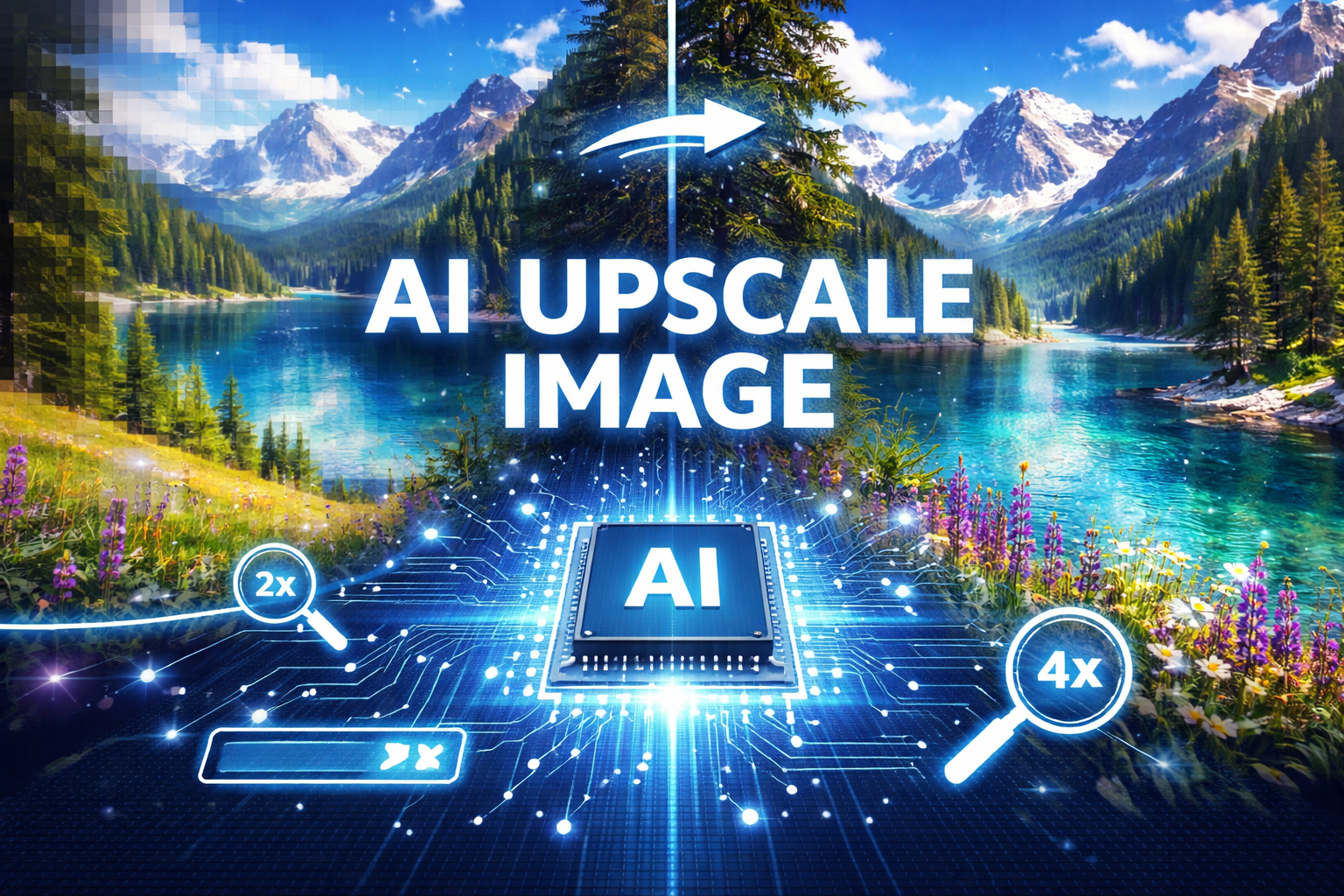
Digital imagery has become central to modern communication, from social media posts and professional presentations to marketing materials and personal photo archives. Yet quality issues frequently emerge when attempting to enlarge images—pixelation, blurriness, and loss of fine details plague traditional resizing methods. Artificial intelligence has revolutionized this challenge, introducing sophisticated algorithms that intelligently reconstruct and enhance images during the upscaling process. This comprehensive guide explores four powerful AI-driven tools that transform low-resolution images into crisp, detailed high-resolution versions suitable for printing, professional use, or digital display.
1. 4 AI Tools for Image Upscaling (With Step-by-Step Guide)
Tool 1: How to Upscale an Image Using Leawo Photo Enlarger
Leawo Photo Enlarger stands out among desktop AI upscaling solutions by combining powerful enhancement capabilities with user-friendly operation. The software employs deep learning algorithms specifically trained on diverse photographic content, enabling intelligent enlargement up to 40 times original dimensions without significant quality degradation.
Key Features:
- Supports enlargement up to 1000% while maintaining exceptional clarity
- Handles batch processing for efficient workflow with multiple images
- Preserves fine details in faces, landscapes, and architectural photography
- Automatically reduces noise and compression artifacts during upscaling
- Works offline without requiring internet connectivity or cloud uploads
Step-by-Step Process:
Step 1: Download and Install
Visit the official Leawo website and download Photo Enlarger for your operating system. The installation process follows standard procedures—accept the license agreement, choose your installation directory, and complete the setup wizard. Launch the application once installation finishes.
Step 2: Import Your Image Click the “Add Photo” button or drag and drop images directly into the workspace. The software accepts all common formats including JPEG, PNG, BMP, and TIFF. You’ll see thumbnail previews of imported images in the queue panel.
Step 3: Configure Upscaling Settings Select your desired output resolution from preset options or manually specify dimensions. The software displays projected file sizes and recommended settings based on your source image quality. Enable noise reduction if working with older or compressed images.
Step 4: Process and Export Click “Start” to begin AI enhancement processing. Depending on image size and selected enlargement factor, processing takes anywhere from several seconds to a few minutes. Once complete, preview the results and save to your chosen directory with your preferred file format.
Leawo Photo Enlarger excels at preserving human facial features and fine textures, making it particularly valuable for portrait photography, family photo restoration, and situations requiring printable quality from modest digital sources.
Tool 2: How to Upscale an Image Using Topaz Gigapixel AI
Topaz Gigapixel AI has earned industry recognition as one of the most sophisticated AI upscaling solutions available, particularly favored by professional photographers and graphic designers who demand maximum quality.
Key Features:
- Utilizes cutting-edge neural network architecture trained on millions of sample images
- Achieves exceptional results with enlargements up to 600% of original dimensions
- Includes specialized models optimized for different image types (portraits, landscapes, graphics)
- Offers granular control over enhancement parameters for expert users
- Integrates seamlessly with Adobe Lightroom and Photoshop workflows
Step-by-Step Process:
Step 1: Acquire and Install Purchase Topaz Gigapixel AI from the official Topaz Labs website (a free trial version allows testing before commitment). Download the installer and follow the installation wizard. The software requires activation through your Topaz Labs account.
Step 2: Load Your Image Launch Gigapixel AI and either drag your image into the window or use File > Open to browse for your source file. The application displays the original image alongside a real-time preview of upscaling results.
Step 3: Select AI Model and Scaling Factor Choose between available AI models—Standard works well for general photography, while specialized options like Low Resolution and Compressed optimize for challenging source material. Set your desired scale percentage using the slider or entering specific output dimensions.
Step 4: Fine-Tune Enhancement Options Adjust the Suppress Noise slider to balance noise reduction against detail preservation. Modify the Remove Blur setting cautiously, as excessive values can introduce artificial sharpening. The face recovery option specifically optimizes facial features in portraits.
Step 5: Process and Save Click “Save Image” to begin processing. Gigapixel AI displays a progress bar and estimated completion time. Once finished, the enhanced image saves to your specified location. For batch operations, add multiple images to the queue before processing.
Topaz Gigapixel AI delivers arguably the highest quality results available, though its premium pricing and steeper learning curve make it most appropriate for professional applications and serious enthusiasts.
Tool 3: How to Upscale an Image Using Let’s Enhance
Let’s Enhance operates as a cloud-based AI upscaling platform, eliminating software installation while providing powerful enhancement capabilities accessible from any web browser.
Key Features:
- Browser-based operation requires no downloads or installations
- Offers multiple AI enhancement modes including upscaling, sharpening, and color correction
- Supports batch processing of multiple images simultaneously
- Provides API access for developers integrating enhancement into applications
- Includes free tier for testing with limited monthly credits
Step-by-Step Process:
Step 1: Create an Account Navigate to the Let’s Enhance website and register for a free account using your email address. New users receive complimentary credits to test the service before committing to paid plans.
Step 2: Upload Your Image Click “New Image” and select files from your computer or drag them directly into the browser window. The platform accepts standard image formats up to specified size limits based on your subscription tier.
Step 3: Choose Enhancement Type Select from available enhancement presets: “Smart Enhance” applies general improvements, “Tone Enhance” optimizes color and lighting, “Anti-JPEG” removes compression artifacts, and “Magic” combines multiple enhancements. For simple upscaling, select your target resolution from the size options.
Step 4: Process and Download Click “Start Processing” to send your image to Let’s Enhance’s cloud servers. Processing typically completes within 30-60 seconds for standard images. Once finished, preview results and download enhanced versions directly to your device.
Let’s Enhance suits users preferring cloud convenience over desktop software, particularly those working across multiple devices or requiring occasional upscaling without maintaining installed applications. The subscription model offers flexibility but requires ongoing payment for regular use.
Tool 4: How to Upscale an Image Using Adobe Photoshop
Adobe Photoshop, the industry-standard image editing platform, now incorporates AI-powered upscaling through its “Super Resolution” feature built into Adobe Camera Raw and available to Creative Cloud subscribers.
Key Features:
- Seamlessly integrates within familiar Photoshop workflow
- Doubles image dimensions while enhancing detail through machine learning
- Works particularly well with RAW files from digital cameras
- Requires no separate software purchase for existing Creative Cloud members
- Combines upscaling with Photoshop’s comprehensive editing capabilities
Step-by-Step Process:
Step 1: Open Image in Camera Raw Launch Photoshop and open your target image. If working with JPEG or PNG files, right-click the layer and select “Convert to Smart Object,” then choose Filter > Camera Raw Filter to access enhancement features. RAW files automatically open in Camera Raw.
Step 2: Access Super Resolution Right-click on the image thumbnail in Camera Raw’s filmstrip panel. Select “Enhance” from the context menu to open the enhancement dialog. Photoshop displays a preview showing the quality improvement Super Resolution will provide.
Step 3: Apply Enhancement Click “Enhance” to apply AI upscaling. Photoshop processes the image and creates a new DNG file with doubled linear dimensions (quadrupled pixel count). This process takes 30-60 seconds depending on original file size and computer processing power.
Step 4: Continue Editing The enhanced image opens automatically in Camera Raw, where you can apply additional adjustments before opening in Photoshop’s main workspace. From there, proceed with any further editing, retouching, or compositing before final export.
Photoshop’s Super Resolution provides excellent results, particularly for photographers already working within the Adobe ecosystem. While limited to 2x upscaling compared to specialized tools offering higher factors, the quality proves exceptional and the integration streamlines professional workflows.
2. Benefits of Using AI for Image Upscaling
Artificial intelligence has fundamentally transformed image enlargement from a compromise-laden necessity into a quality-enhancing process that often improves upon original source material.
Superior Detail Preservation: AI algorithms analyze image content contextually, understanding what they’re viewing rather than blindly interpolating pixels. This intelligent approach preserves critical details like facial features, text legibility, and fine textures that traditional methods blur or lose entirely.
Intelligent Artifact Reduction: Beyond simple enlargement, AI upscalers actively identify and minimize compression artifacts, noise, and other image degradation. Old photographs or heavily compressed images receive simultaneous restoration during the upscaling process.
Edge Enhancement Without Halos: Traditional sharpening creates visible halos around high-contrast edges. AI systems recognize edge boundaries and enhance them naturally, maintaining authentic appearance while improving definition.
Content-Aware Processing: Advanced neural networks distinguish between image regions—handling skin tones differently than foliage, treating architectural lines distinctly from organic shapes. This contextual processing produces more natural-looking results across diverse subject matter.
Time and Cost Efficiency: What previously required hours of manual retouching by skilled professionals now happens automatically in minutes. This democratization allows anyone to achieve professional-quality enlargements without specialized expertise.
Versatility Across Applications: Whether preparing images for large-format printing, enhancing product photography for e-commerce, restoring historical photographs, or improving gaming textures, AI upscaling adapts to varied requirements with consistently impressive results.
For those exploring various options, reviewing the best image upscalers provides comprehensive comparisons helping identify ideal solutions for specific needs and budgets.
3. Conclusion
Image upscaling has evolved from a quality-compromising necessity into a genuine enhancement opportunity thanks to artificial intelligence. The four tools explored—Leawo Photo Enlarger, Topaz Gigapixel AI, Let’s Enhance, and Adobe Photoshop—each offer distinct advantages for different user needs and workflows.
Leawo Photo Enlarger provides excellent desktop software for general users seeking powerful features without complexity. Topaz Gigapixel AI delivers maximum quality for professional applications demanding absolute best results. Let’s Enhance offers cloud-based convenience for occasional users preferring browser access over installed software. Adobe Photoshop integrates AI upscaling seamlessly into existing professional photography workflows.
Your optimal choice depends on usage frequency, quality requirements, budget constraints, and workflow preferences. Casual users restoring family photos find Leawo or Let’s Enhance most accessible, while professional photographers gravitate toward Topaz or Photoshop for mission-critical work. Regardless of which tool you choose, AI upscaling technology ensures your enlarged images maintain quality that would have seemed impossible just a few years ago. Experiment with available free trials to discover which solution best matches your specific image enhancement needs.