





If you’ve been trying to sync Google Photos and Google Drive, you’ve probably noticed that Google removed their built‑in automatic sync back in 2019. More recently, Google Drive for desktop also dropped backup support for the Google Photos folder. This means Google has officially shut down all native automatic sync and backup connections between the two services. So, is there still a way to sync Google Photos with Google Drive?
Can You Still Sync Google Photos to Google Drive?
While Google no longer offers official automatic sync between Google Photos and Google Drive, there are still a few ways to manually transfer files between the two services. These methods won’t deliver true real‑time synchronization, yet they work perfectly fine if you only need to move a small number of photos and do not require ongoing syncing. Let’s walk through these two approaches.
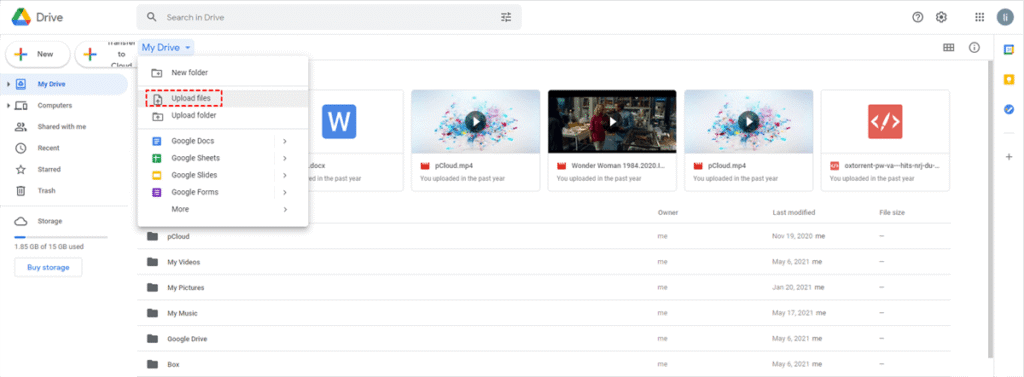
Method 1. Manually Download and Upload
This method is simple enough, yet the whole process takes up local storage space on your computer. It can also eat up a huge amount of time when you need to transfer hundreds or thousands of photos.
Step 1. Sign in to your Google Photos and download all of your photos to local storage.
Step 2. Upload these images from local computer to your Google drive.
Method 2. Transfer Google Photos to Google Drive with Google Takeout
You can export all your photos and videos from Google Photos at once using Google Takeout, and then import the resulting ZIP file directly into Google Drive. One annoying downside to this method though, is that you can’t access and use the photos inside the ZIP file directly without downloading.
Step 1. Log in to Google Photos with your Google account.
Step 2. Click the “Settings” icon and scroll down to locate the “Export your data” section, then expand this section.
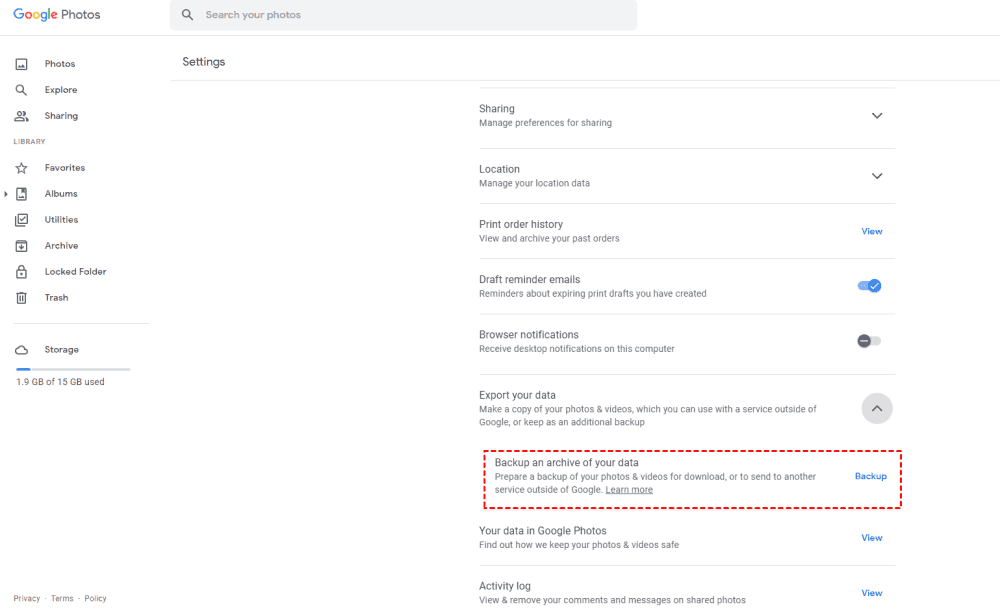
Step 3. Click “Backup” next to “Backup an archive of your data”.
Step 4. Under “Transfer to” section, choose “Drive” to export it to Google Drive, then click “Create export”.
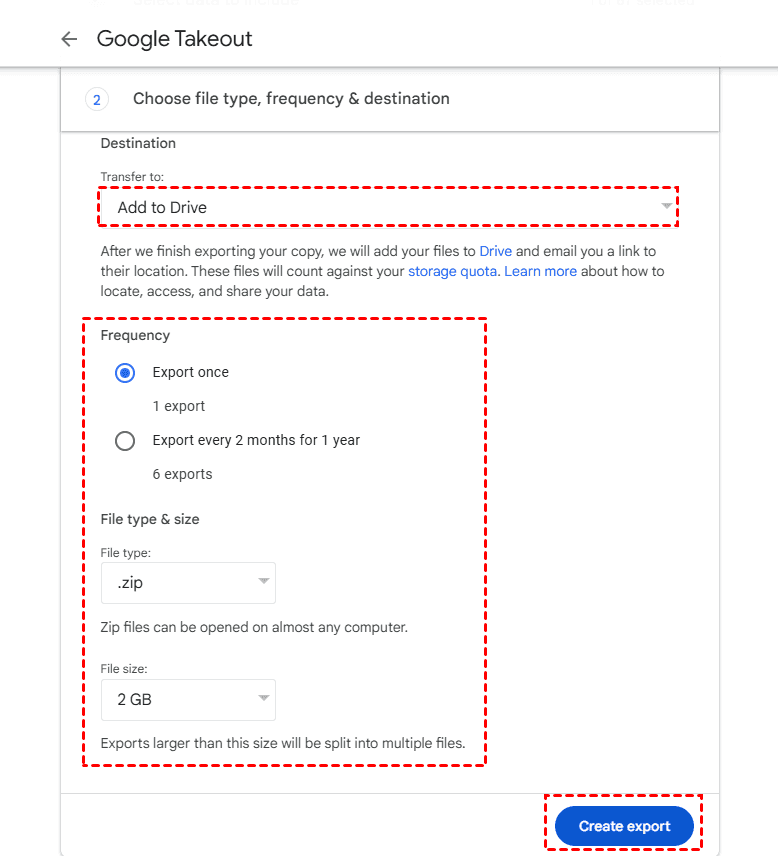
Step 5. Once the process is finished, you can check the ZIP file in Google Drive.
How to Automatically Sync Google Photos to Google Drive with MultCloud
So there really is no way to get true sync from Google Photos to Google Drive? Far from it — MultCloud was built exactly for this purpose. You can sync Google Photos to Google Drive automatically without downloading and uploading. As a multi‑cloud management platform, MultCloud allows you to sync, back up and transfer files between different cloud drives. It can also convert emails to PDF files and download their attachments for archiving.
Which MultCloud Sync Mode Should You Choose?
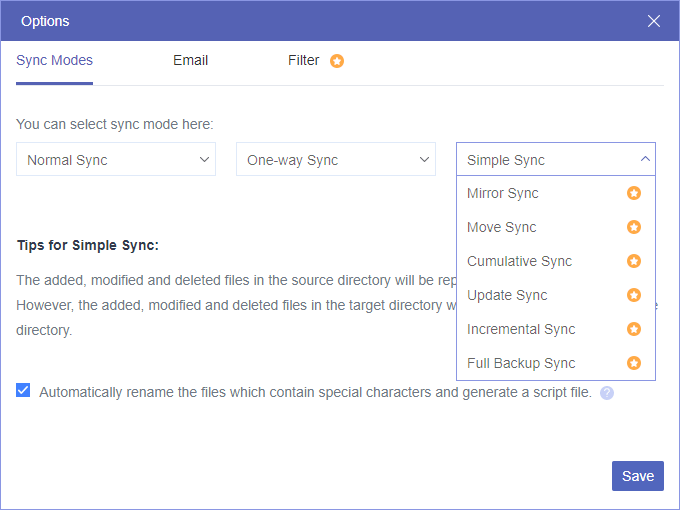
MultCloud offers more than 10 sync modes, so you can decide whether Google Photos and Google Drive stay updated, mirror each other, or keep two separate backup copies. Which mode you pick depends on whether you want to sync, migrate or back‑up your files.
| Sync Mode | What is Does |
| Simple Sync | Syncs added, modified, and deleted files from the source to the destination. |
| Real-Time Sync | Syncs changes from the source as they occur. |
| Mirror Sync | Keeps the destination as an exact copy of the source. |
| Move Sync | Syncs files and then removes them from the source. |
| Cumulative Sync | Copies changes from the source but does not delete corresponding destination files when they are removed from the source. |
| Update Sync | Clears the destination first, then syncs the current source data. |
| Incremental Sync | Creates a new destination subfolder for each sync and saves newly added or modified files there. |
| Full Backup Sync | Creates a new destination subfolder and copies all source files during each sync. |
| One-Way Sync | Syncs changes in the selected source toward the destination without syncing destination changes back. |
| Two-Way Sync | Synchronizes changes between both locations. |
You can sync Google Photos to Google Drive by following these steps:
Step 1. Head to MultCloud official website and create a MultCloud account, then log in to access the dashboard.
Step 2. Click “Add Clouds and Emails” in the left side bar, choose Google Photos and Google Drive to grant access to MultCloud.
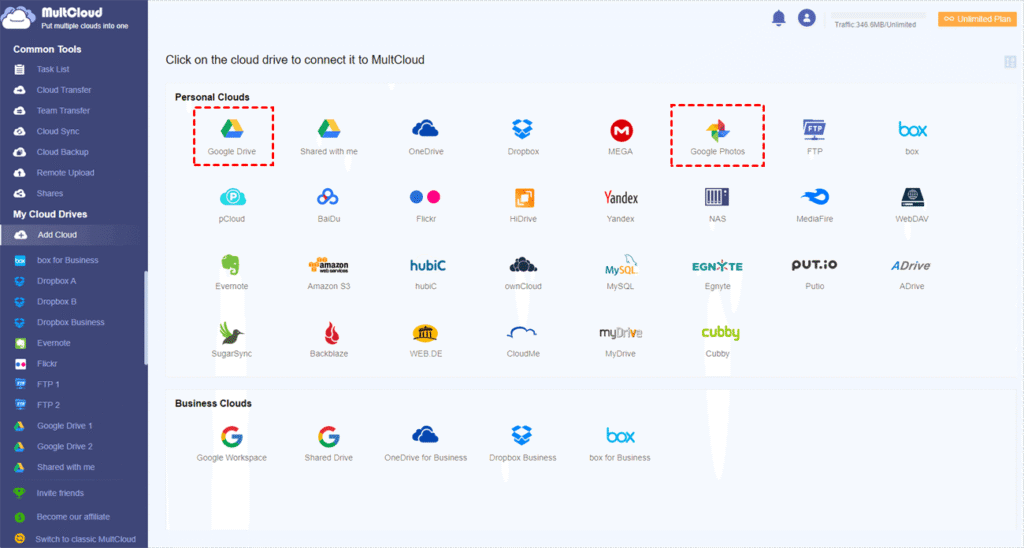
Step 3. Locate the “Cloud Sync” feature, select Google Photos as the source drive and Google Drive as the destination.
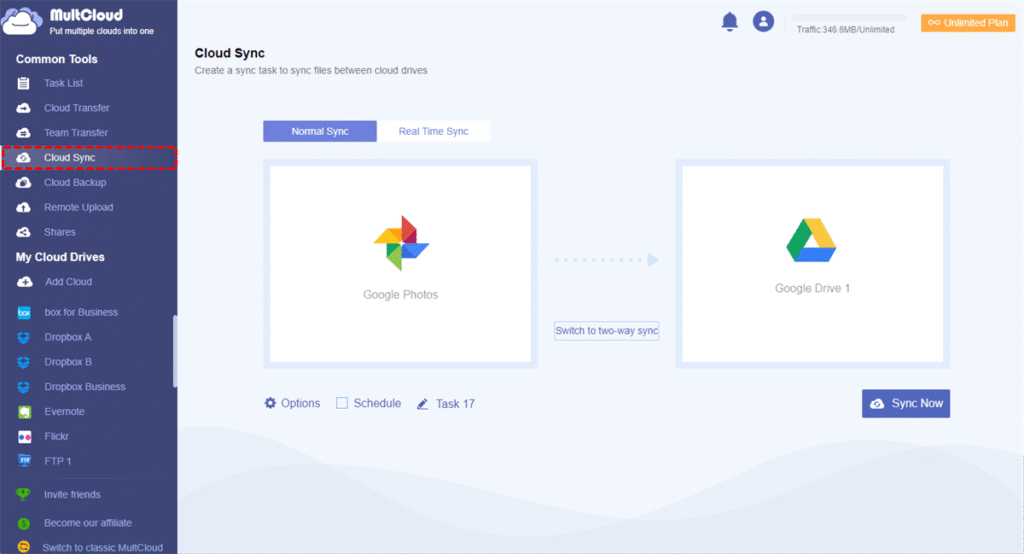
Step 4. Click “Options” to choose your preferred sync mode, or set email notifications, file filters and configure scheduled tasks based on your needs.
Summary
While Google no longer syncs Google Photos and Google Drive automatically, MultCloud gets around these limits with flexible sync modes. Besides cloud‑to‑cloud sync and backup, it also lets you save emails as PDFs and back up website files including FTP files and database. Why waste time on manual transfers? Sign up for MultCloud today to start your first sync task.